> For the complete documentation index, see [llms.txt](https://hthcapital.gitbook.io/izigift-help-docs/llms.txt). Markdown versions of documentation pages are available by appending `.md` to page URLs; this page is available as [Markdown](https://hthcapital.gitbook.io/izigift-help-docs/basics/klaviyo-integration.md).
# Klaviyo Integration
Integrating iziGift with Klaviyo gives you full control over how your gift card and cashback emails look, feel, and perform. You can use Klaviyo's powerful segmentation, analytics, and A/B testing to optimize your delivery emails — and even upsell products alongside gift card notifications.
Setting up the integration is quick. Follow the steps below.
***
## 1. Connect Klaviyo to iziGift
### Get your API keys
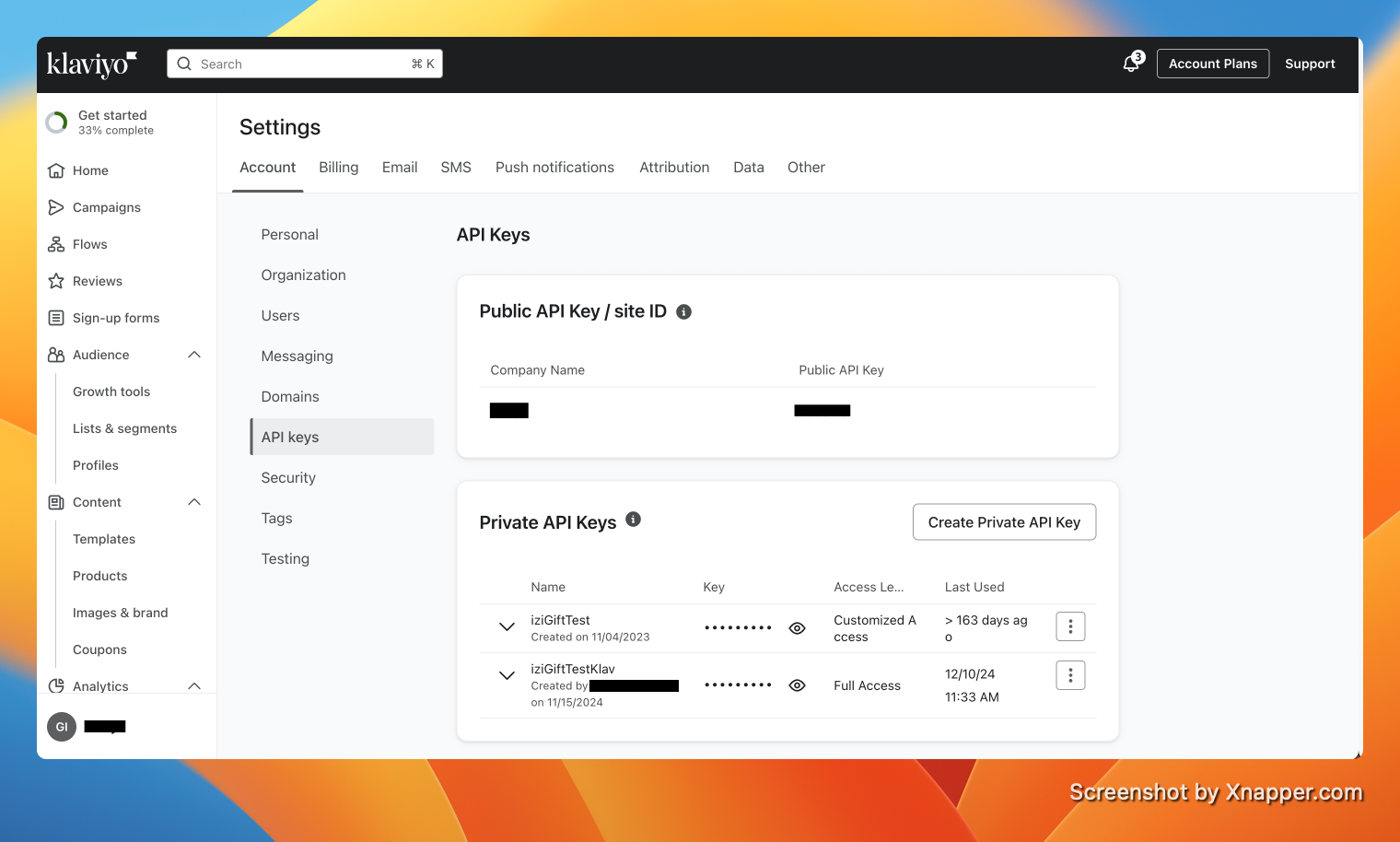
1. Log into your Klaviyo account and go to **Settings → API Keys**.
2. Copy your **Public API Key** (also called "Site ID") from the top of the page.
3. Create a **Private API Key** specifically for iziGift. Klaviyo will only show this key once — save it somewhere safe. Give the key the following scopes:
* Tags (Read & Write)
* Profiles (Read & Write)
* Subscriptions (Read & Write)
* Metrics (Read & Write)
* Events (Read & Write)
* Forms (Read & Write)
* Templates (Read & Write)
* Flows (Read & Write)
> **Important:** The Templates and Flows scopes are required for iziGift to automatically create email templates and flows in your Klaviyo account. If you previously created a key without these scopes, you'll need to create a new one.
### Enter your keys in iziGift
4. In iziGift, go to **Settings → Email Delivery Settings**.
5. Click **Enable Klaviyo Integration**, enter your Public and Private Klaviyo keys, and press **Save**.
After saving, Klaviyo is connected — but all your emails will still be sent through iziGift until you switch individual email types to Klaviyo.
***
## 2. Choose which emails Klaviyo sends
On the same page you'll see a table of email types grouped into **Gift Card Emails** and **Cashback Emails**.
For each email type, use the **Sent By** dropdown to choose:
* **iziGift** — iziGift sends the email using its built-in templates. Click **Customize** to edit the design.
* **Klaviyo** — Klaviyo sends the email. When you switch to Klaviyo, iziGift **automatically creates an email template and a draft flow** in your Klaviyo account with sensible defaults. You just need to activate the flow in Klaviyo (see step 3).
After switching to Klaviyo, click **Customize** to open the template editor where you can tweak the subject line, heading, body text, button text, and brand color. Changes are synced to Klaviyo when you save.
***
## 3. Activate your flow in Klaviyo
When you switch an email type to Klaviyo, iziGift creates a **draft flow** in your Klaviyo account. Draft flows don't send emails until you activate them — this lets you review everything first.
1. In your Klaviyo account, go to **Flows** (left sidebar).
2. Look for a flow named **"iziGift: \[event name]"** (e.g. "iziGift: Gift Card Received"). It will be in **Draft** status.
3. Open the flow, review the trigger and email action, then click **Set Live** (or **Update Status → Live**) when you're ready.
That's it — Klaviyo will now send that email type whenever the event fires.
***
## 4. Customizing your email template
You can edit your Klaviyo email template at any time:
1. In iziGift, go to **Settings → Email Delivery Settings**.
2. For the email type you want to edit, click **Customize**.
3. Update any field — subject line, heading, body text, button text, or brand color. A live preview shows your changes in real time.
4. Click **Save template**. Changes are pushed to Klaviyo immediately.
For more advanced customization (custom HTML, drag-and-drop layout, images), click **View in Klaviyo** to open the template in Klaviyo's full editor.
**Preview text:** The preview text (the short snippet that appears next to the subject line in the inbox) is set when iziGift creates the flow and is not editable in the template itself. To change it, open the flow in Klaviyo, edit the **Send Email** action, and update the preview text there.
### Previewing your template with real data in Klaviyo
In Klaviyo's template editor, dynamic values (like the gift card amount and code) appear blank until the email is sent. To see how the email will actually look with real data, use Klaviyo's preview with a sample profile and recent event:
1. In the Klaviyo template editor, select **Preview** at the top right.
2. Select a **sample profile** (a profile that has received or could receive this email type).
3. Select **Edit content**. When Klaviyo asks **"Do you want to exit the Preview?"**, click **Yes**. A new page will open.
4. On the new page, click **Preview Email**.
5. In the modal that opens, choose **one of the recent events** (e.g. a recent "Gift Card Received" event) so Klaviyo can fill in real data.
6. When asked **how you would like to preview this email**, select **Show directly in Klaviyo**.
7. Click **Preview Now**. A modal will show exactly how the email would look for that specific user, with the real gift card amount, code, and other dynamic fields filled in.
\
NOTE: The Flow must be live for this preview feature to work.
### Available merge tags
Merge tags are placeholders that Klaviyo replaces with real data when the email is sent. Use them in the heading and body text fields.
**Gift Card Emails** (Gift Card Received, Purchased For Self, Issued):
| Merge Tag | Description |
| ---------------------------------------------- | ----------------------------- |
| `{{ event.GiftCardCode\|default:'' }}` | The gift card code |
| `{{ event.GiftCardName\|default:'' }}` | The gift card product name |
| `{{ event.GiftCardPrice\|default:'' }}` | The gift card value |
| `{{ event.GiftCardPageUrl\|default:'' }}` | Link to the gift card page |
| `{{ event.GiftCardMessage\|default:'' }}` | The sender's personal message |
| `{{ event.GiftCardVariantTitle\|default:'' }}` | The gift card variant title |
| `{{ event.GiftCardCategory\|default:'' }}` | The gift card category |
| `{{ event.RecipientFirstName\|default:'' }}` | The recipient's first name |
**Cashback Emails** (Cashback Reward Received, Cashback Reward Achieved):
| Merge Tag | Description |
| -------------------------------------------- | ---------------------------------------------------------------- |
| `{{ event.CashbackAmount\|default:'' }}` | The cashback reward amount |
| `{{ event.OrderEmail\|default:'' }}` | The customer's email |
| `{{ event.Category\|default:'' }}` | The cashback category |
| `{{ event.RecipientFirstName\|default:'' }}` | The recipient's first name (Cashback Reward Received / Achieved) |
| `{{ event.RecipientLastName\|default:'' }}` | The recipient's last name (Cashback Reward Received / Achieved) |
| `{{ event.DelayDays\|default:'' }}` | Days until reward is issued (Cashback Reward Achieved only) |
***
## For legacy Klaviyo users
If you had Klaviyo enabled before iziGift introduced automatic template and flow creation, your setup is considered **legacy**. Here's what that means:
* **Your existing flows and templates in Klaviyo are untouched.** iziGift will not create new templates or flows for email types that were already set to Klaviyo.
* **The "Customize" button is disabled** for email types managed through your legacy Klaviyo setup. You'll see a note explaining that these emails are managed directly in Klaviyo.\
* **To edit these emails**, go to Klaviyo directly:
1. **Templates:** Go to [Klaviyo → Email Templates](https://www.klaviyo.com/email-templates) to edit your email designs.
2. **Flows:** Go to [Klaviyo → Flows](https://www.klaviyo.com/flows) to edit triggers, conditions, or flow structure.
* **Switching back to iziGift:** If you switch a legacy email type back to iziGift (using the "Sent By" dropdown), iziGift's built-in email will handle that email type. Your Klaviyo flow will still exist but won't receive events from iziGift for that email type.
* **Switching back to Klaviyo after switching to iziGift:** Toggling back to Klaviyo will re-enable event sending to your existing Klaviyo flow. Make sure the flow is still set to "Live" in Klaviyo.
> **Want to transition from legacy to iziGift-managed templates?** Contact support and we can help you migrate to the new automatic setup.
***
## Advanced: Using your own template or editing the flow
iziGift creates a template and a draft flow for each email type you switch to Klaviyo. If you want to go further, you can use your own template or edit the flow directly in Klaviyo:
* **Edit the template:** Click **View template** (or **Customize** then **View template** in Klaviyo) to open the email in Klaviyo's editor. You can change the design, swap in your own template, or add images and custom HTML.
* **Edit the flow:** Click **View flow** to open the flow in Klaviyo. You can change the trigger, add steps, or point the email action to a different template.
Creating a *new* flow in Klaviyo for the same event can lead to duplicate emails, so we don't recommend it. Use the flow iziGift created and edit it as needed.
### Event names and properties
When building or editing templates in Klaviyo, use these event names and properties so your merge tags match the data iziGift sends:
**iziGift event triggers**
| Event Name | When it fires |
| -------------------------------- | ----------------------------------------------------------------------------- |
| **Gift Card Received** | A gift card is purchased and sent to a recipient. |
| **Gift Card Purchased For Self** | A customer purchases a gift card and sends it to themselves. |
| **Gift Card Issued** | A gift card is issued from the iziGift admin panel (single, bulk, or refund). |
| **Cashback Reward Received** | A cashback reward is distributed to a customer. |
| **Cashback Reward Achieved** | A customer qualifies for a cashback reward (before any delay period). |
> **Note:** "Giftable Product Received" is deprecated and should not be used.
**Event properties** (merge tags) are listed in the [Available merge tags](#available-merge-tags) section above. Use those same property names in your Klaviyo template (e.g. `{{ event.GiftCardCode }}`, `{{ event.CashbackAmount }}`).
***
## Troubleshooting
**"Your Klaviyo API key is missing the required Templates scope"** Your private API key doesn't have the Templates (Read & Write) permission. Create a new private key in Klaviyo with all the required scopes listed in step 1, then update it in iziGift.
**"Switched to Klaviyo, but we couldn't create the template automatically"** This usually means your API key is missing permissions. Check that your key has Templates and Flows scopes. If the issue persists, contact support.
**"Template created, but the flow couldn't be created automatically"** Your template was created successfully in Klaviyo; only the flow (the trigger that sends the email) failed. You can:
1. **Try again:** Toggle the email type back to iziGift, then switch it to Klaviyo again. iziGift will attempt to create the flow again without creating a new template.
2. **Create the flow in Klaviyo:** In Klaviyo, go to **Flows** → **Create Flow** → **Create from Scratch**. Choose **API** as the trigger type, then select the iziGift metric that matches this email type (e.g. "Gift Card Received"). Add a **Send Email** action and choose the template iziGift created (it will be named "iziGift: \[event name]"). Save and set the flow to **Live**.
If you prefer not to create the flow yourself, contact support.
**Emails aren't sending after switching to Klaviyo** Make sure the flow in Klaviyo is set to **Live** (not Draft). Go to Klaviyo → Flows and check the status of your iziGift flow.
***
We've seen this integration be incredibly powerful. Not only does it give you more control over the style and branding of your gift card and cashback emails, but it opens the door to upselling, segmentation, and advanced email marketing alongside your gift card program. Klaviyo is the leading revenue driver for many brands — and paired with the power of gift cards, it can truly take your business to the next level!